Keep your favourite instrument. Poly Pusher sits before it in Live and turns your chord choices into a playable musical starting point.
01
Start with harmony.
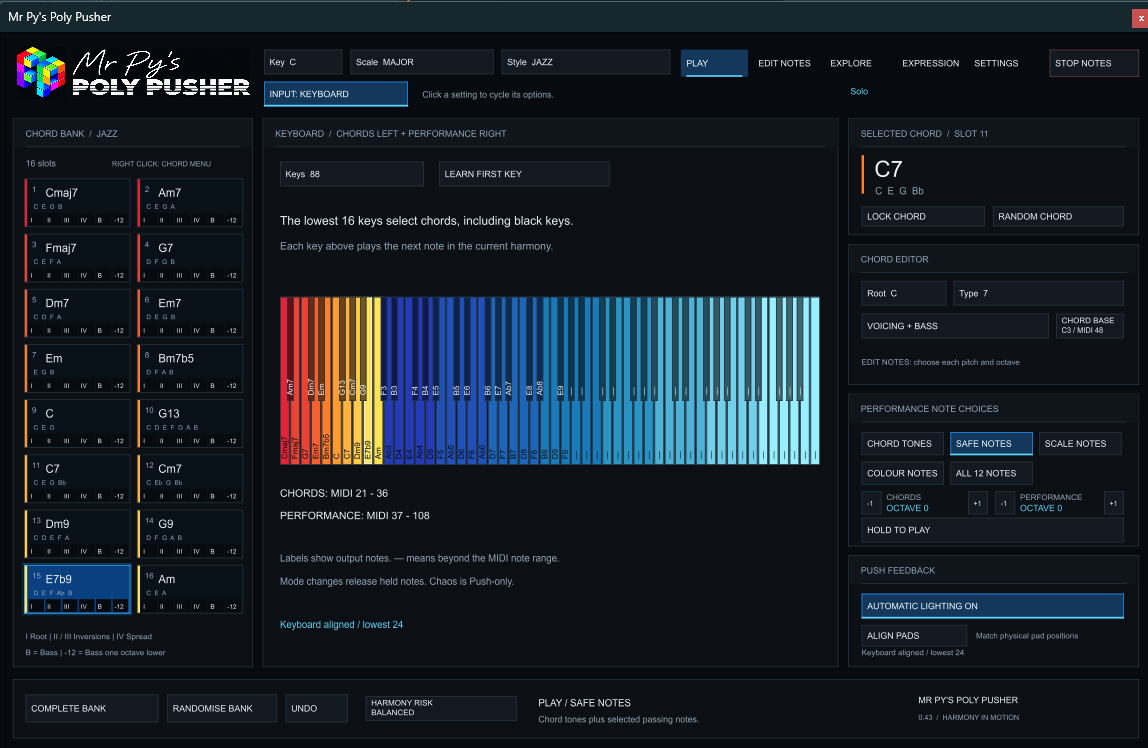
Choose and edit 16 chords, record your own notes, or build them on the note keyboard. Drag chord cards to reorder them. Lock the ones you love, then Complete Bank generates complementary choices around your selected chord and favourites.
02
Find your melody.
The performance notes follow the active chord. Choose chord tones, a scale, safer notes or something more colourful. Chords and melody have separate octave controls.
03
Put feeling into it.
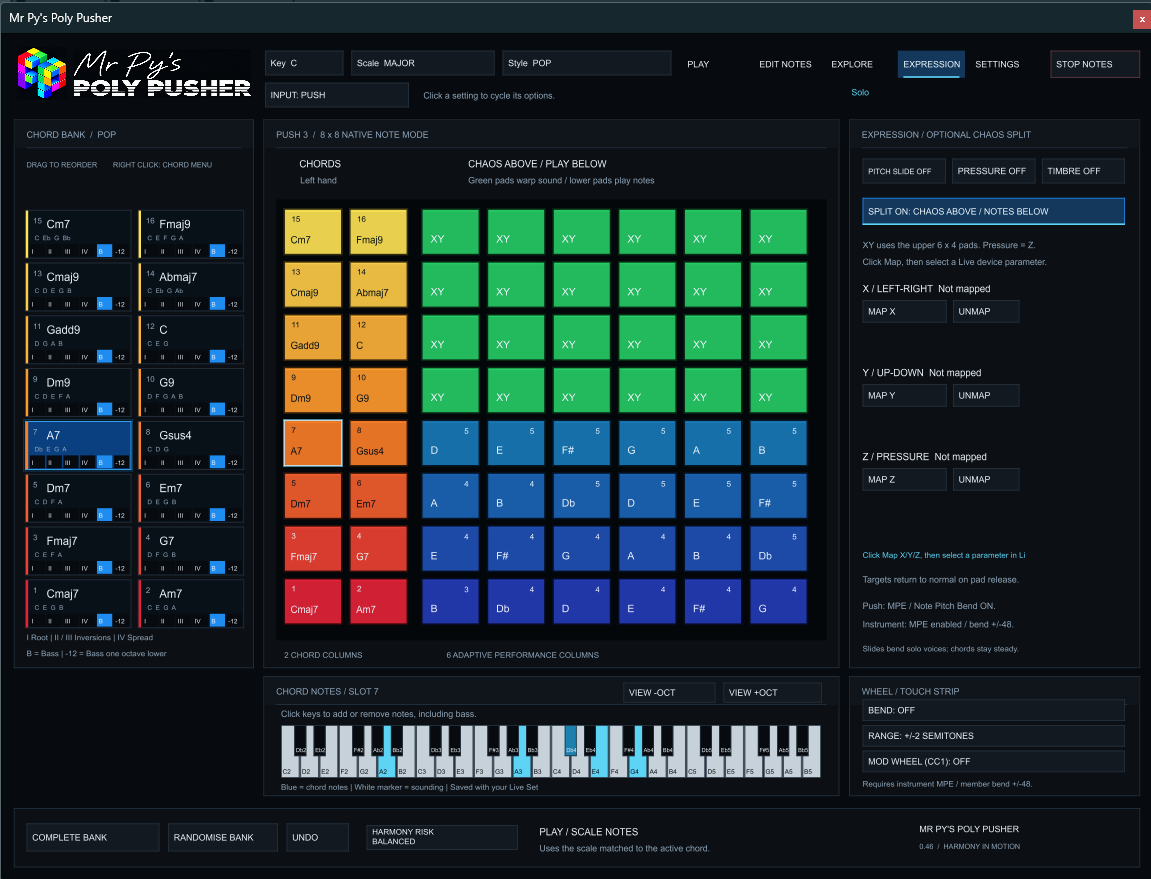
Use your keyboard pitch wheel or Push touch strip to bend chords, performance notes or both with an MPE instrument. Explore Push pad slide, pressure and timbre, or use the Chaos pad to map X, Y and pressure (Z) to three different parameters in Live.
04
Give chords room.
Choose root position, inversions or a spread voicing. Add bass and a lower octave independently. Set each chord your way, or apply one setup across the whole bank.
POLY PUSHER 0.43 / ACTUAL SCREENSHOTS
Two ways to play the same device. Switch views above, or click the screenshot to see it full size. Link two instances to play chords on one instrument and a melody on another.
MASTER & FOLLOW / TWO INSTRUMENTS
Play the chords. Follow with another sound.
Play chords on one instrument and a melody on another. Linked Poly Pusher instances share the active harmony, so your performance notes follow the chord you choose.
01 / CHORD TRACK
Set the Master.
Place Poly Pusher before your chord instrument, choose Master and select a Link Group. For example, play your chords on a piano or pad.
02 / MELODY TRACK
Add a Follower.
Place a second Poly Pusher before a different instrument and choose Follow in the same Link Group. Use its performance notes to play a lead or another melody over the shared harmony.
Chord instrument: Link: MASTER · Link group 1 The first instance supplies the harmony. The “Sending chords” status shows it is sharing chord information with its group.Melody instrument: Link: FOLLOWER · Link group 1 The second instance uses the same group. This setup screenshot shows “Waiting for Master”; an active Master in that group is needed before playing along with the shared harmony.
Change the chord on the Master and the Follower’s available performance notes adapt. You play the melody yourself; the Follower does not automatically play the Master’s chords or bass.
Turn the upper 6 × 4 performance pads into a Chaos pad while keeping the lower pads for notes and the left-hand columns for chords.
X / Left–right
Map horizontal movement to one parameter, such as filter cutoff.
Y / Up–down
Map vertical movement to another, such as resonance.
Z / Pressure
Press into the pads to control a third parameter, such as an effect’s wet/dry mix.
Click Map X, Map Y or Map Z, then select the parameter in Live. For third-party instruments and effects, expose the control through Live’s Configure panel first.
Actual Poly Pusher 0.46 screenshot. Click to view full size. The Chaos pad is available in Push mode.
02 / POLY PUSHER
Your next idea starts here.
The device and installation guide are packaged. Final testing and checkout setup are underway; purchasing will open when they are complete.
Developed on Windows. Push 1, Push 2 and macOS are not yet verified.
How does it fit into my Live Set?
Place Poly Pusher before an instrument on a MIDI track. Choose Push or keyboard mode, then play the chord section on the left and performance notes on the right.
Can I use it with Serum or Drift?
Poly Pusher sends MIDI to your instrument. For chaos mapping, select a control in Live after clicking Map. Third-party controls must first be exposed through Live’s Configure panel.
Can I use two instruments together?
Yes. Put Poly Pusher before each instrument on separate MIDI tracks. Set the chord instance to Master and the melody instance to Follow in the same Link Group. Play chords on the Master and performance notes on the Follower; its available notes follow the active harmony. See Master & Follow above.
03 / MUSIC BY MR PY
Beyond the device.
A home for future releases, listening links and the music behind the tools.
↗Music & listening links Coming soon
04 / SUPPORT & UPDATES
Keep playing.
Setup help, a guide to the controls and a direct line when you need a hand.
For help, include your Poly Pusher version, Live version and controller, plus a description of what happened.
How will updates work?
Get updates through your original Payhip purchase/download page. Install each version in its own folder and keep older versions for existing projects. Back up important Live sets before upgrading.
Is Push required?
No. Keyboard mode gives the lowest 16 keys to chord selection and the remaining keys to performance notes. Choose your keyboard size and use Learn First Key to set the starting point. The Chaos pad split is Push-only.
05 / LICENCE & REFUNDS
Licence and support
Your purchase provides a licence for one person to use Mr Py’s Poly Pusher, including in commercial music releases and live performances. You may install it on computers you own and use.
You retain the rights to the music you create. You may not share, resell, upload or redistribute the plugin or its supplied files.
For installation help or product issues, email support@mrpy.uk with your order number and Ableton Live version.
Refunds
If your download is faulty or does not match its description, contact support@mrpy.uk. We will provide the remedy required by applicable consumer law, which may include repair, replacement or a partial or full refund.
Any applicable cancellation rights remain in place unless validly waived through consent to immediate digital delivery and acknowledgement of losing those rights. Nothing in this policy limits your statutory rights.